

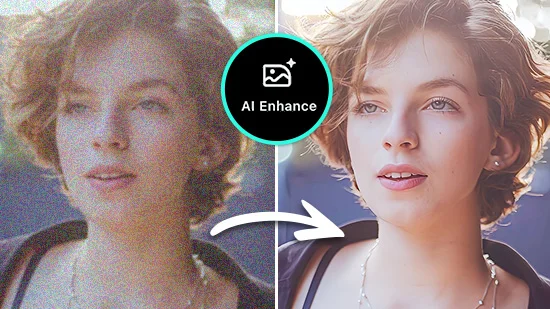
This article is for photographers, content creators, small business owners, and everyday users who want to improve their photos online without learning professional editing software. If you have an image that looks flat, blurry, overexposed, or cluttered, AI-powered enhancement tools can fix those problems in seconds, and you do not need any technical background to use them. By the end of this guide, you will know what to look for in an online photo enhancer, how the main tool types compare, and which options are worth your time.
What AI Photo Enhancement Actually Does
The term “AI photo enhancement” gets used loosely, so it helps to understand what it actually means before evaluating tools. At its core, AI enhancement means the software analyzes your image and makes intelligent adjustments automatically, rather than requiring you to manually move sliders until the result looks right.
Depending on the tool, AI enhancement can mean one-click exposure and color correction, background detection and removal, object insertion or erasure, noise reduction, sharpening for blurry or low-resolution images, and skin smoothing for portraits. Some tools do all of these things. Others specialize in one or two. The practical difference for a non-designer is significant: a one-click auto-enhance replaces what would otherwise require knowing which combination of brightness, contrast, highlights, shadows, and saturation adjustments to apply.
What has changed in the last few years is how accessible these tools have become. They run in a browser, require no installation, and produce results in seconds. The question is not whether AI enhancement is useful. It is which tool handles your specific type of images and workflow most efficiently.
Eight Criteria for Evaluating Online Photo Enhancement Tools
These criteria apply consistently across every tool you test, whether it is a free browser-based option or a paid professional application.
1. Ease of Upload and Interface The fastest way to know whether a tool is genuinely beginner-friendly is to count how many steps it takes to get from uploading a photo to downloading an improved version. Tools that require you to create an account, configure settings, or navigate multiple menus before seeing any result have a higher friction threshold. Look for drag-and-drop upload, a clear editing panel, and visible output within seconds of uploading.
2. Auto-Enhance Quality Every serious tool in this category offers some form of one-click or automatic enhancement. But the quality of that auto-enhancement varies considerably. On a well-lit photo, most tools will produce similar results. The real test is how the tool handles challenging inputs: underexposed images, flat colors, backlit portraits, or photos with mixed lighting. Test your actual photos rather than the platform’s demo images.
3. Background Removal Accuracy Background removal has become a core feature across almost every photo enhancement tool. The difference between tools comes down to how accurately the AI detects edges, particularly around hair, transparent objects, and fine details. A tool that handles clean product photography on a white background will not necessarily handle a portrait taken outdoors with a complex background equally well. Check whether you can manually refine edges after the AI makes its initial cut.
4. Object Removal and Generative Editing The ability to remove unwanted elements from a photo, like a photobomber in the background or a piece of clutter on a table, is one of the most practically useful AI features. More advanced tools also let you add objects using generative AI, replacing or extending parts of an image with AI-generated content. Evaluate how natural the results look and whether the tool handles the surrounding texture and lighting realistically when filling in the removed area.
5. Manual Adjustment Controls Auto-enhancement is a starting point, not always a final result. Look for tools that give you manual control over brightness, contrast, saturation, highlights, shadows, sharpness, and color temperature after the AI makes its initial pass. The best tools combine automatic suggestions with accessible fine-tuning so you can push the result further without needing to understand the technical basis of each adjustment.
6. Output Quality and Download Options Some tools reduce image quality on download, add watermarks to free exports, or limit you to lower resolutions on free plans. Before committing to a platform, confirm the output resolution, whether watermarks can be removed, and what file formats are available for download. If you plan to print your images or use them in professional contexts, resolution preservation matters considerably.
7. Mobile Availability Not everyone edits photos from a desktop browser. If you regularly shoot and edit on a phone, check whether the tool has a native mobile app or a fully functional mobile web experience. A scaled-down mobile version that lacks the key AI features is not the same as a proper mobile app.
8. Integration With Broader Design Workflows For many users, enhancing a photo is not the end of the project. The image will end up in a social post, a product listing, a flyer, or a website. Tools that let you take your enhanced photo directly into a design canvas without re-uploading save meaningful time. Evaluate whether the photo enhancer connects to other design features within the same platform.
Types of Online Photo Enhancement Tools and How They Compare
Single-Purpose AI Upscalers and Sharpeners
These tools focus on one specific problem: making low-resolution, blurry, or compressed images look sharper and cleaner. They typically work by analyzing the image at a pixel level and using AI to reconstruct detail that was lost due to compression, poor lighting, or a low-quality camera.
The strength of dedicated upscalers is that they do their one job very well. If you regularly deal with low-resolution product images, old scanned photographs, or screenshots that need to be printed at larger sizes, a dedicated upscaler will outperform a general-purpose photo editor on that specific task. The limitation is that these tools usually do not offer broader retouching capabilities. You get a sharper image, but you cannot remove a background, adjust color, or take that image into a design template from the same interface.
For users whose primary need is resolution enhancement, these tools are worth having in the toolkit. For users who need a broader set of editing features alongside sharpening, a more general-purpose AI enhancer is a better starting point.
AI Portrait and Skin Retouching Tools
These platforms are built specifically for photos of people. They typically include features like skin smoothing, blemish removal, teeth whitening, eye brightening, and background replacement, all handled automatically or with simple sliders. Some tools in this category use face-detection AI to identify and separately enhance multiple people in a single photo.
The results on portrait-specific tools can be impressive for social media content, profile pictures, and personal photography. The trade-off is that these tools are not useful for non-portrait images. If you need to enhance product photos, landscapes, or architectural images, a portrait-focused tool will not be the right fit. The narrower scope is a feature for some users and a limitation for others.
General-Purpose Online Photo Editors With AI Features
This is the broadest category and the one where most users will find the best balance of capability and accessibility. These platforms offer auto-enhancement alongside manual controls, background removal, object editing, filters, and often the ability to continue working with the enhanced image in a design context.
The best tools in this category are built so that the AI handles the technically demanding decisions while leaving creative choices to the user. They work well across different image types, run in a browser without installation, and offer enough depth to handle both quick fixes and more involved retouching projects.
Adobe Express as One Strong Option
For users who want a full set of AI enhancement features in a free, browser-based tool they can also use for design work, the Adobe Express image enhancer is a practical choice. The auto-enhance feature handles exposure, contrast, saturation, and clarity adjustments automatically, and the results are fast enough to use as a starting point even when your image does not need significant correction.
The background removal tool uses AI to detect the subject and strip the background in one click, which is particularly useful for product photography, profile pictures, and any image where you plan to place the subject on a new backdrop. For more involved edits, the Firefly-powered generative tools let you add or remove objects within a photo using text prompts, and the Sharpen tool in the Adjustments menu gives you manual control over focus and clarity for images that need more than an auto-fix.
What makes the platform worth considering beyond the enhancement tools alone is the direct connection to the broader Adobe Express design ecosystem. Once your image is enhanced, you can immediately use it in a social post, advertisement, flyer, or presentation template without re-uploading it to a different tool. The platform is free to start, works on both desktop and mobile, and accepts JPEG, PNG, and WebP files without requiring any software installation.
Common Mistakes When Choosing a Photo Enhancement Tool
Testing a tool only on a high-quality, well-lit photo is the most common evaluation error. Every AI enhancer performs well on favorable input. The real test is how it handles your actual problem images: dark shots, overexposed skies, cluttered backgrounds, or blurry close-ups. Upload a genuinely difficult photo before deciding a tool is right for you.
Ignoring output resolution is another frequent oversight. A visually impressive edit that downloads at reduced resolution is not useful for print, large-format display, or professional contexts. Always check the resolution of the exported file before committing to a platform.
Finally, do not assume that because a tool offers many features, all of them work equally well. A platform might have excellent background removal and mediocre object erasure, or strong color correction and poor sharpening. Evaluate the specific features you will actually use rather than the total feature count.
FAQ
How is AI enhancement different from just applying a filter?
A filter applies a fixed visual style to an image uniformly, adjusting all the tones and colors in the same direction regardless of what is in the photo. AI enhancement, by contrast, analyzes the specific content of your image and makes adjustments that are contextually appropriate. An AI auto-enhance tool can recognize that a photo is underexposed in the shadows but well-lit in the highlights and apply different adjustments to each area. It can identify a person’s face and apply smoothing only to skin tones, or detect the edges of a subject and remove only the background. Filters are creative stylistic choices, while AI enhancement is fundamentally about restoring or improving the technical quality of an image in ways that are specific to that image’s content. The two are not mutually exclusive, and most good tools offer both.
Will AI enhancement change the look of my photo in ways I did not intend?
This depends on the tool and the image. Auto-enhancement makes assumptions about what an improved photo should look like, and those assumptions do not always match your intent. A tool that boosts saturation automatically may oversaturate an image that was intentionally muted. An AI sharpener may add unwanted grain to a photo that was soft for aesthetic reasons. The best tools present auto-enhancement as a starting suggestion rather than a final result and give you manual controls to dial back or override any individual adjustment. If you find that auto-enhancement consistently pushes your images in a direction you do not like, look for a tool with more granular slider controls so you can keep the adjustments you want and undo the ones you do not.
Can I use AI-enhanced photos for commercial purposes?
In most cases, yes, but the answer depends on the source of the original image and the platform’s terms of service. If you own the original photo or have a commercial license for it, enhancing it with AI does not typically change your usage rights. Where it gets more complicated is with generative AI features that add or replace elements within a photo. Platforms handle the commercial licensing of AI-generated content differently. Adobe Express, for example, uses Firefly-generated content that is designed to be commercially safe, meaning you can use it in paid advertising and commercial projects. For any other platform, check the terms of service specifically around generative output before using AI-added elements in commercial work. For a reliable source of commercially licensed base images to work with, Unsplash+ offers high-resolution photos with a commercial use license, which pair well with AI enhancement workflows.
How much does quality degrade when I enhance and download an image?
On well-built platforms, the enhancement process should not reduce image quality if you download at the original dimensions. Quality loss typically occurs when a tool compresses the output file, limits the export resolution on a free plan, or when you resize the image to significantly larger than the original dimensions. Upscaling adds AI-generated detail that can look natural or artificial depending on the tool’s quality. The safest practice is to download your enhanced image at the original resolution and compare it at full size before using it. If the exported file looks noticeably softer or more compressed than the pre-download preview, the platform may be applying post-processing compression that you cannot control, which is a sign to look for a higher-quality export option or a different tool.
Do these tools work well on smartphone photos?
Yes, and smartphone photos are actually one of the most common use cases for AI image enhancement. Smartphone cameras produce images that are technically impressive but often carry visible noise in low-light shots, compression artifacts from social media uploads, or minor focus issues. AI enhancement tools generally handle these well. Background removal on smartphone portraits, in particular, has become very reliable because smartphones tend to produce images with clear foreground subjects. The area where smartphone photos can challenge AI tools is extreme low-light photography, where the AI may over-smooth away texture while trying to reduce noise. If you frequently shoot in low light, test a sample of your actual photos on any platform before committing to it.
Conclusion
The market for online AI photo enhancement tools has matured to the point where non-designers have genuinely capable options available to them, many at no cost. The difference between tools is not so much whether they can improve a photo but how well they handle your specific types of images, how much control they give you alongside the automation, and whether they fit into the rest of your workflow.
Use the eight criteria in this guide to evaluate any tool against your actual needs rather than its feature list. Test on your real problem images, confirm that the export quality meets your standards, and consider whether the platform connects to any broader design tasks you need to accomplish with the enhanced result. A tool that handles all of that in one place will save more time in practice than one that excels at enhancement alone but stops there.
